
Run PHP on Windows with Gruxi (No IIS, Apache or Nginx Needed)
 Running PHP on Windows has traditionally been more awkward than it should be. There is no native PHP-FPM workflow like on Linux, IIS adds complexity many developers do not want, and large WAMP-style bundles often feel heavy when all you want is a fast local PHP web server on Windows.
 Gruxi takes a different approach. It can run as a normal Windows application or as a Windows service, and it can manage php-cgi.exe for you directly on Windows. That means you can get a working PHP web server on Windows without Apache, without IIS, and without stitching together multiple moving parts by hand.
If you are looking for a practical way to run PHP on Windows for local development, testing, or even lightweight hosting, this guide will get you from zero to a working setup quickly.
Why PHP on Windows is usually awkward
On Linux, PHP deployments often rely on PHP-FPM behind Nginx or Apache. On Windows, that path is less natural. PHP-FPM is not the normal model there, so many developers end up choosing between tools that are more complex than their use case really needs.
Common pain points include:
- IIS is powerful, but it is often too much setup for a simple PHP app.
- Apache on Windows works, but it is rarely the setup developers are most comfortable maintaining.
- WAMP bundles solve the first-run problem, but they can feel oversized when you only need a PHP web server and not a full stack bundle.
- Switching PHP versions can become messy when multiple projects need different runtimes.
This is exactly where Gruxi fits well.
Why Gruxi helps on Windows
Gruxi has first-class Windows support, including managed PHP-CGI and Windows service support. Instead of asking you to wire together a separate process manager, Gruxi can start, monitor, and restart PHP-CGI processes for you.
That gives you a few practical benefits:
- You can run PHP directly on Windows with no IIS, Apache or Nginx required.
- Gruxi has a built-in admin UI for configuration and monitoring.
- You can create multiple managed PHP handlers and switch between PHP versions more easily.
- The same server can move from local development to a more persistent Windows service setup when needed.
If your goal is to run PHP on Windows with less ceremony, Gruxi gives you a much cleaner path than a traditional Windows PHP hosting stack.
Quickstart: Install Gruxi and create a small PHP site
Start by downloading Gruxi for Windows from GitHub Releases.
Extract the zip archive somewhere convenient, for example:
C:\gruxiThen create a folder for your test PHP application:
C:\sites\php-testInside that folder, add a file named index.php:
<?php
phpinfo();
Next, make sure you have a Windows PHP build installed somewhere on disk and that it is the appropriate version for your needs.
Choosing the right PHP version and build for Windows
When running PHP on Windows, you have the option to choose between different PHP versions (e.g., PHP 7.4, PHP 8.0, etc.) and different builds (thread-safe vs non-thread-safe). The choice depends on your specific use case and the requirements of your application.
See the section in the PHP configuration guide for more details on choosing a PHP version and build (thread-safe or non-thread-safe) for Windows.
Gruxi will later point to php-cgi.exe, so your PHP installation should include that executable, for example:
C:\php\php-cgi.exeNow start Gruxi from the extracted folder.
In Command Prompt:
gruxi.exeIn PowerShell:
.\gruxi.exeIf you want Gruxi to keep running like a background server on a Windows machine, you can later install it as a Windows service. For a first test, running it directly is the fastest way to get started.
Configure PHP-CGI and verify the site works
Once Gruxi is running, open the admin UI at https://localhost:8000 and log in with the admin user. On first run, Gruxi prints the password to its startup output. Save it when you see it.
From there, configure a managed PHP-CGI instance and a site:
- Open the configuration area.
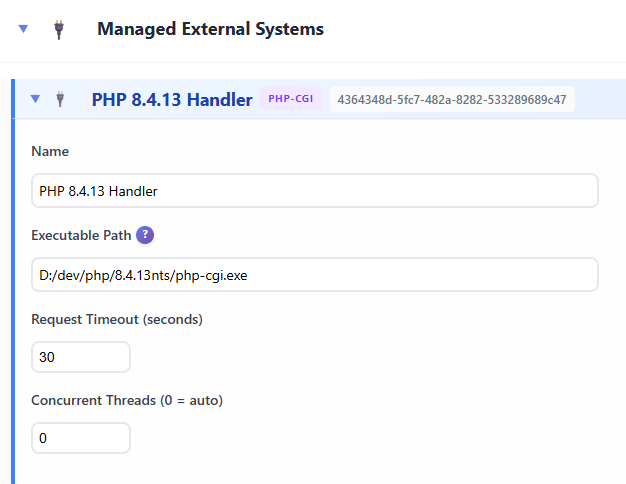
- Go to Managed External Systems and create a PHP-CGI instance.
- Point it to your
php-cgi.exe, such asC:\php\php-cgi.exe.
- Create or edit a site.
- Add a Static File Processor for your app folder, such as
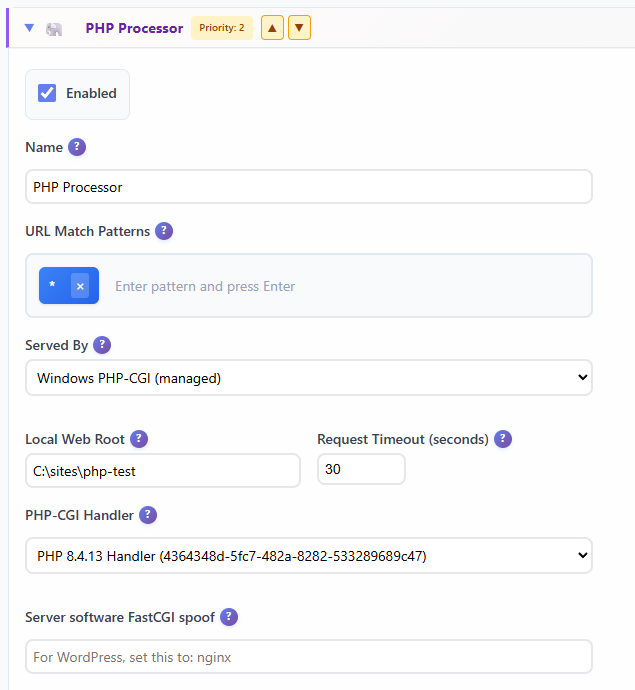
C:\sites\php-test. - Add a PHP Processor and choose
Windows PHP-CGI (managed). - Select the managed PHP instance you just created.
- Save and reload the configuration.
This is the key difference versus older Windows PHP setups: Gruxi manages the PHP-CGI lifecycle for you. You do not need to separately babysit PHP worker processes or build an IIS configuration just to serve a simple app. To change versions, you can just create a new managed PHP-CGI instance and point it to a different php-cgi.exe path, then switch the site to use that new instance. So much easier than the traditional Windows PHP hosting workflow.
To verify everything is working, open:
http://localhost/You should see the PHP info page rendered by your index.php file. At that point, you have a working PHP web server on Windows running through Gruxi.
If you want more detail on the PHP processor itself, see the PHP configuration guide.
Use the admin UI for monitoring and quick changes
The built-in admin UI is one of the biggest reasons Gruxi feels easier to work with than a traditional Windows PHP stack. Instead of editing several config files across different tools, you can manage the server from one place.
In the admin UI you can:
- inspect site configuration
- review managed PHP-CGI instances
- reload configuration changes
- monitor server activity and status
- prepare the setup for a more permanent Windows service deployment
That is especially useful if you are testing multiple projects or different PHP versions on the same machine. Gruxi reduces the amount of manual Windows-specific glue code you normally need to keep a PHP environment tidy.
You now have PHP running on Windows without IIS, Apache or Nginx
You have now set up PHP on Windows with Gruxi, using a built-in admin UI and managed PHP-CGI instead of IIS, Apache, or a bulky WAMP bundle. For developers who want a cleaner way to run PHP on Windows, this is a much more direct workflow.
From here, the next step is simple: point Gruxi at a real application instead of the phpinfo() page. Try a small custom app first, then move on to something larger like a framework project or an existing site you want to test locally. Beware that most of the "bigger" projects will require URL rewriting to be set up, which luckly Gruxi supports with its built-in rewrite rules engine.
If you want to keep going, start with the Getting Started docs, then review the managed PHP-CGI guide and the PHP processor documentation.