
Docker Compose for PHP Applications with Gruxi
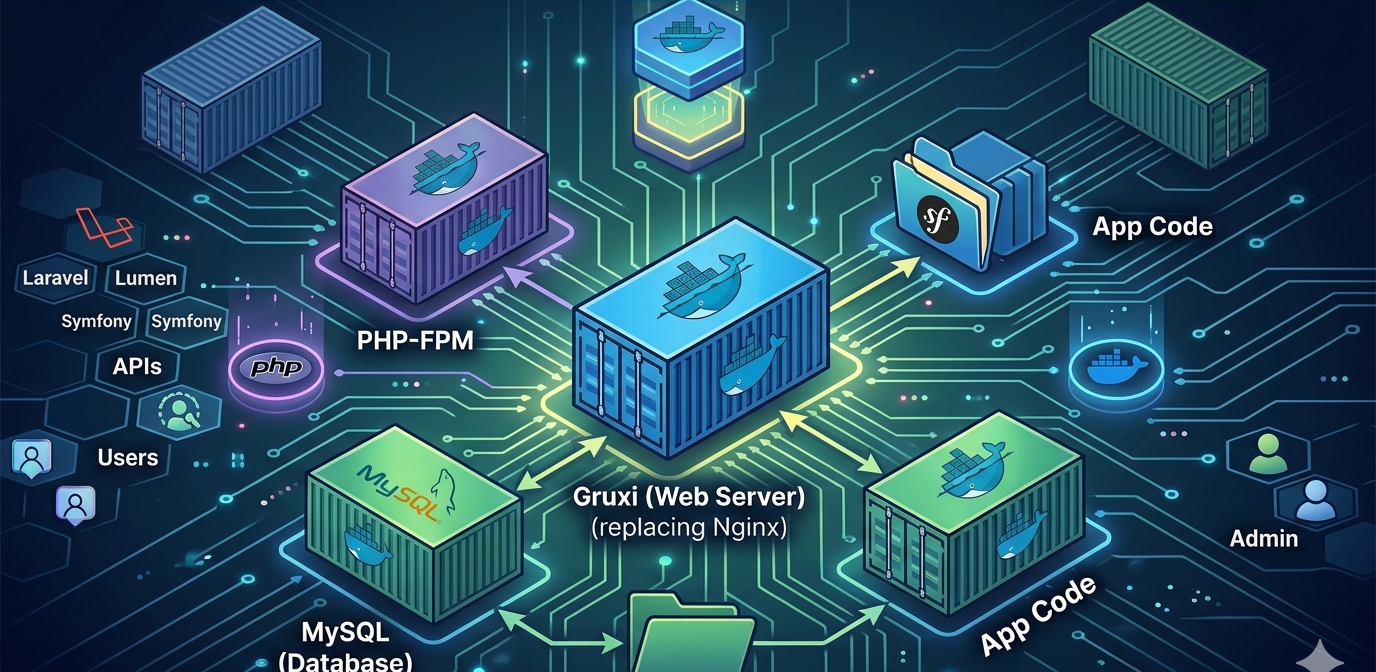
Containerizing PHP applications is a standard workflow for modern development teams. A typical PHP stack often includes a web server, PHP-FPM, and a database, which is exactly why Docker Compose has become such a common fit for local development and repeatable deployments. If you are used to a LEMP-style setup, Gruxi can take the place of the traditional web server layer while still keeping the PHP-FPM flow PHP developers already know.
This guide walks through a practical setup using Gruxi, PHP-FPM, and MySQL in one Compose project. The result is a ready-to-run PHP environment that is easy to test locally and easy to adapt for frameworks such as Laravel, Lumen, Symfony, or a custom PHP application.
If you are searching for a docker PHP webserver setup, a docker-compose PHP Nginx alternative, or a practical way to run Docker Gruxi PHP locally, this is the fastest path to something usable.
Example architecture
In this setup, each container has a narrow responsibility:
- Gruxi accepts HTTP(s) traffic and serves static files.
- Gruxi forwards PHP requests to PHP-FPM over FastCGI.
- MySQL runs separately for application data.
- The application code is mounted into both the Gruxi and PHP-FPM containers.
Browser
	|
	v
Gruxi (:80, :443, :8000 admin)
	|
	+--> static files from /app/www-default
	|
	+--> FastCGI to php-fpm:9000
							|
							+--> PHP app at /var/www/html
													|
													+--> MySQL:3306
This is a good fit when you want to keep the familiar PHP-FPM model.
Sample docker-compose.yml
Start with a project directory like this:
my-php-app/
	docker-compose.yml
	gruxi/
		db/
		logs/
		certs/
	app/
		public/
			index.php
Then create this docker-compose.yml:
services:
	gruxi:
		image: ghcr.io/daevtech/gruxi:latest
		depends_on:
			- php-fpm
			- mysql
		ports:
			- "80:80"
			- "443:443"
			- "8000:8000"
		volumes:
			- ./gruxi/db:/app/db
			- ./gruxi/logs:/app/logs
			- ./gruxi/certs:/app/certs
			- ./app/public:/app/www-default:ro
		restart: unless-stopped
		networks:
			- appnet

	php-fpm:
		image: php:8.3-fpm-alpine
		working_dir: /var/www/html
		volumes:
			- ./app:/var/www/html
		restart: unless-stopped
		networks:
			- appnet

	mysql:
		image: mysql:8.4
		environment:
			MYSQL_DATABASE: app
			MYSQL_USER: app
			MYSQL_PASSWORD: app
			MYSQL_ROOT_PASSWORD: root
		volumes:
			- mysql-data:/var/lib/mysql
		restart: unless-stopped
		networks:
			- appnet

volumes:
	mysql-data:

networks:
	appnet:
		driver: bridge
There are two details that matter most for PHP routing:
- Gruxi needs the local project web root mounted at
/app/www-defaultso it can serve static files. - PHP-FPM needs the same application mounted at its own internal path, for example
/var/www/html, and that exact path must later be used as theFastCGI Web Rootin Gruxi.
That path mapping is the part people most often get wrong in containerized FastCGI setups.
Setup walkthrough
Once the Compose file is in place, the workflow is straightforward.
1. Create a small test app
Inside app/public/index.php, add a small test page:
<?php
declare(strict_types=1);

echo "<h1>Gruxi + PHP-FPM + Docker Compose</h1>";
echo "<p>PHP is running correctly.</p>";
echo "<p>PHP version: " . PHP_VERSION . "</p>";
If you prefer, you can replace this with an existing application or clone a small framework project into app/.
2. Start the containers
From the project root, run:
docker compose up -dThat will start Gruxi, PHP-FPM, and MySQL together.
3. Open the Gruxi admin UI
Open:
https://localhost:8000Log in as admin. On first startup, Gruxi prints the initial password in the container logs. If you need it, retrieve it with:
docker compose logs gruxi4. Configure the site in Gruxi
In the admin UI:
- Open the configuration area.
- Add or edit a
Site. - Keep the default hostname for local testing, or set one if you have a custom hosts entry.
- Add the rewrite function
OnlyWebRootIndexForSubdirsif you plan to use a framework that relies on front-controller routing. - Add a
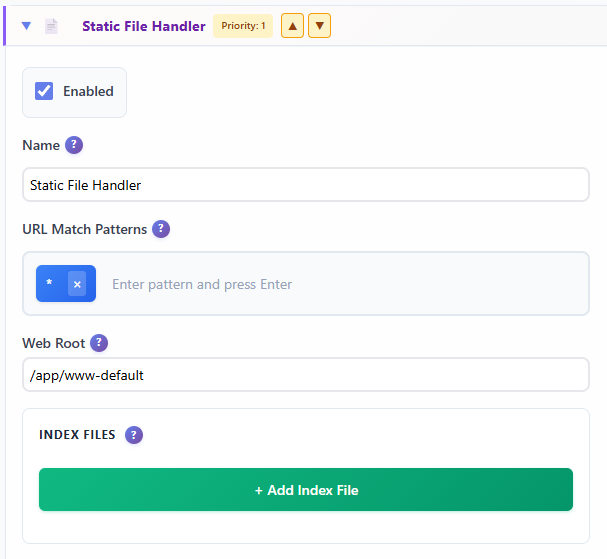
Static File Processorwith priority 1. - Set its
Web Rootto/app/www-default.
- Add a
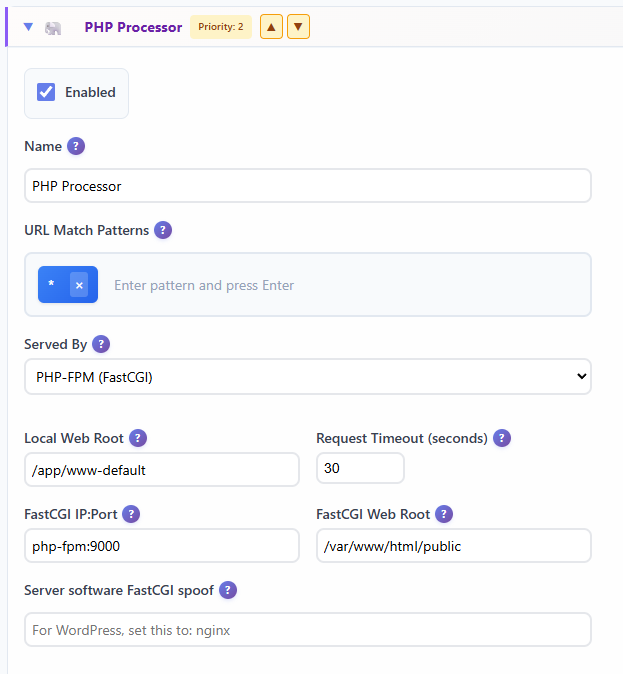
PHP Processorwith priority 2. - Set
Served BytoPHP-FPM. - Set
Local Web Rootto/app/www-default. - Set
FastCGI IP:Porttophp-fpm:9000. - Set
FastCGI Web Rootto/var/www/html/public.
- Save and reload the configuration.
Those values are the core of the integration. Gruxi uses /app/www-default as its local path, then translates PHP requests to the path PHP-FPM sees inside its own container, which here is /var/www/html/public.
If your application is not using a public/ directory, adjust both mounts and paths accordingly.
5. Optional: keep configuration in a file
If you want, you can export the Gruxi configuration and mount it back into the container as gruxi_config.json. Gruxi will load that file automatically at startup, which is useful for version-controlled Docker environments. Otherwise the configuration is stored in the database (/db) which is also persisted across container restarts when mapped to a volume.
See the Docker getting started guide, the command-line arguments docs, and the configuration export/import docs for that workflow.
Test the setup
Once the site is configured and reloaded, open:
http://localhostYou should see the sample PHP page rendered through Gruxi and PHP-FPM.
If you want to test with a real application instead of the sample page, two easy options are:
- Replace
app/with a small existing PHP project. - Clone a lightweight framework app such as Lumen or another minimal PHP starter into
app/and point Gruxi to that web root.
If the browser returns a PHP-related file-not-found error, the first thing to verify is the FastCGI Web Root. It must match the path of the mounted application inside the PHP-FPM container, not the path inside the Gruxi container.
Where to go next
This Compose setup gives you a clean alternative to the usual Docker Compose PHP Nginx stack while still keeping the familiar PHP-FPM model. Gruxi handles the front-end server role, static file serving, and request routing, while PHP-FPM continues doing what PHP developers expect.
From here, the most useful next step is to adapt the example to your actual framework or project structure. If you want to go deeper, continue with the Docker installation guide, the PHP configuration docs, the PHP on Linux example, and the site processor documentation.
Try the sample, swap in your own app, and keep the configuration paths aligned between Gruxi and PHP-FPM. That is the key detail that makes this setup work reliably.